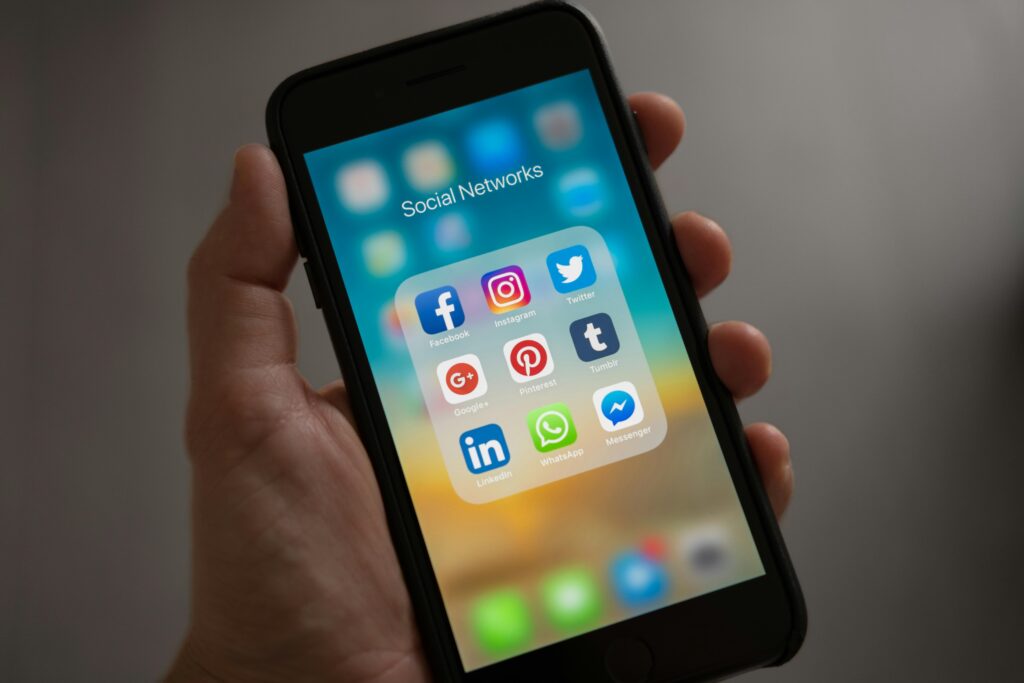
Since 2024, Google has enabled the integration of social media links directly into local Maps listings, and it’s very easy to do so. This improves customer confidence by ensuring that the listing is official, and also helps us strengthen brand consistency across all locations.
1️. Access your Google Business Profile
To get started, log in to the Google account associated with your business. Once inside, search for your business on Google and click on the “Edit profile” option.
2️. Navigate to the social profiles section
Within the editing panel, scroll down until you find the “Social profiles” section. This is usually located below the field for your business website.
3. Add your social media profiles
Click on the “Add social profile” button. A list of available platforms will appear, including:
- TikTok
- Twitter (X)
Select the social network you want to add and enter the full URL of your profile on that platform. It is crucial to ensure the link is correct and does not redirect to another page.
4️. Save changes
After adding all the desired profiles, don’t forget to click the “Save” button so that the changes reflect on your public profile.
Additional considerations
- Information consistency: Make sure that the information in your social media profiles matches that of your Google Business Profile, including name, address, and contact details.
- Regular updates: Keep your profiles updated with relevant and engaging content to encourage interaction with your customers.
- Link monitoring: Periodically check that the links to your social media profiles work correctly and have not changed.
Integrating your social media profiles into your Google Business Profile is a simple yet powerful strategy to enhance your business’s online visibility and consistency. Follow these steps and improve your digital presence today!